Right-click controls
Restrict context menus on storefront content while keeping text fields usable.

Discourage casual copying of your store’s text and images. Choose the protections that fit your storefront, with simple switches and no theme code to edit.
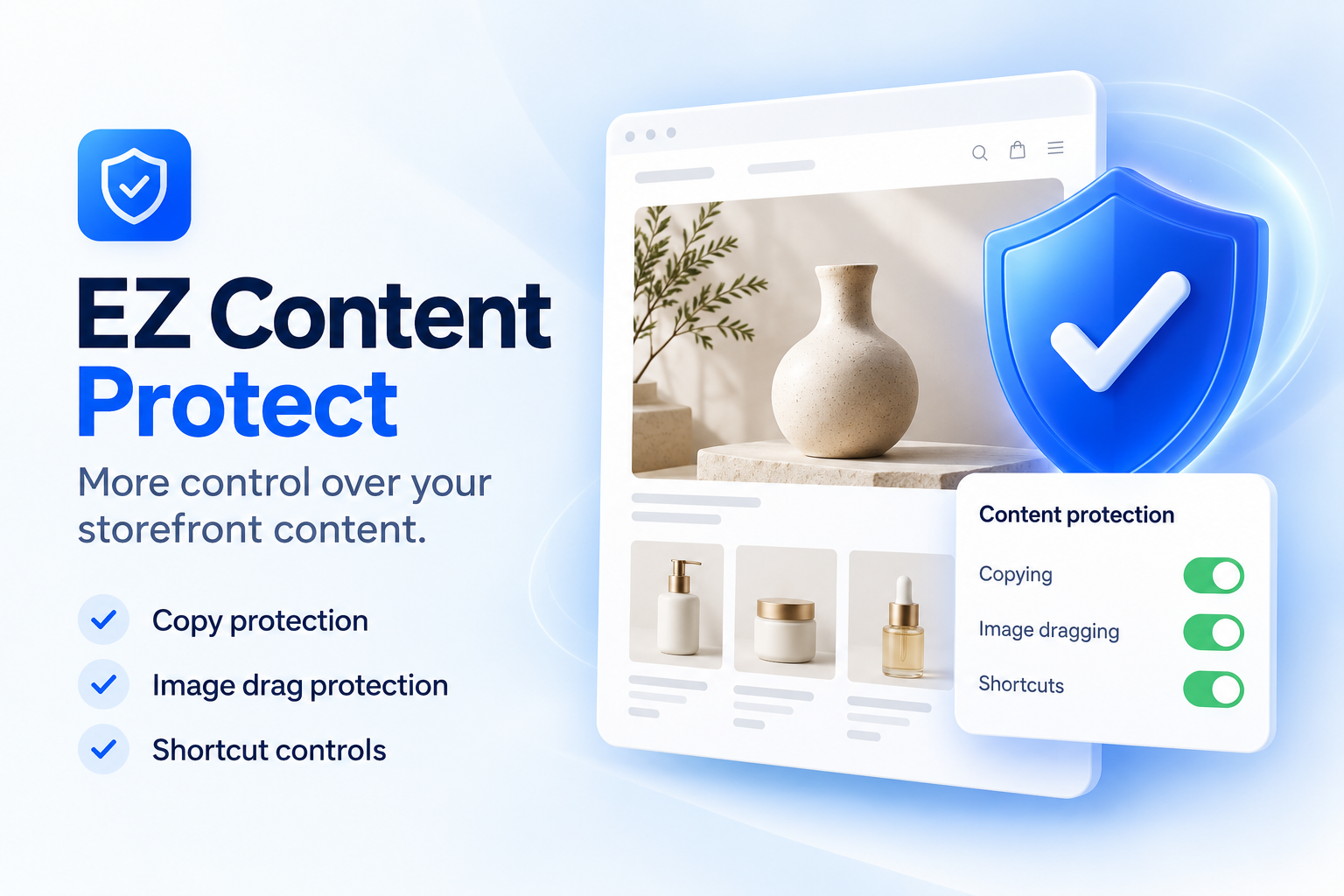
Configure each restriction separately. Keep your choices ready and pause protection with the main switch whenever you need to.
Restrict context menus on storefront content while keeping text fields usable.
Choose whether visitors can select text or use common copy and cut actions.
Restrict image dragging, or block general dragging and dropping on storefront content.
Choose restrictions for common copy, save, print, view-source, and developer-tools shortcuts.
Display your own message in the browser console. Edit the text up to 500 characters.
Use individual switches, a main protection switch, and a theme activation status check in Shopify admin.
Built to discourage casual copying. Screenshots and some browser or download methods cannot be blocked.
Save your settings in the app and activate the embed in your published theme.
Install and open EZ Content Protect in Shopify admin. Open Pricing, choose monthly or yearly billing, and confirm the terms on Shopify. Eligible development stores can select an eligible plan at no charge.
Turn on the main protection switch. Select the content and shortcut controls you need, add an optional console notice, and click Save changes.
Click Open App embeds. Enable EZ Content Protect in your published theme and save the theme. Return to the app and click Check status to refresh the activation indicator.
Open a fresh storefront tab and try the actions you restricted. Protection is intentionally inactive inside the theme editor. Input fields remain editable. Test your forms and navigation after changing controls.
One guide to the app’s setup and protection controls.
The video is currently unavailable. Follow the written setup guide or contact support.
Use the written steps alongside the walkthrough. Remember to test on your storefront, outside the theme editor.
Read the setup guide →Choose the billing schedule that suits your store.
7-day trial for eligible subscriptions.
$4.99 USD / month
Billed monthly
$50 USD / year
Save $9.88 compared with 12 monthly payments.
Select or manage your plan from Pricing inside the app. Eligible development stores can select an eligible plan at no charge. Prices are in USD; taxes may apply. Shopify presents the final price and trial terms before approval.
Confirm that your plan or trial is active, the main protection switch is on, and your settings are saved. Enable the embed on the published theme and save the theme too. Test in a newly loaded storefront tab, outside the theme editor.
The indicator shows the last checked state of the published theme. Save your change in the theme editor, then return to the app and click Check status. Changes on an unpublished theme do not activate protection on the live store.
No. These browser controls discourage casual copying. They cannot prevent screenshots, direct access to publicly available files, or every method of viewing source, opening developer tools, or saving content.
Prevent copying and cutting blocks browser copy/cut actions, including common shortcuts. Block copy and cut shortcuts separately targets those keyboard shortcuts. You can choose the combination that fits your store.
Prevent image dragging targets images. Prevent all drag and drop is broader and includes image dragging. You do not need both to block image dragging when the broader control is enabled.
Inputs, text areas, and editable fields remain usable. Text selection and shortcut restrictions can still affect accessibility and visitor preferences. Enable only the controls you need and test your storefront with them.
No. Both billing schedules include all current protection controls. Standard is $4.99 USD per month or $50 USD per year, with a 7-day trial for eligible subscriptions. Shopify shows the final terms before approval.
Protection requires an active subscription or eligible trial. Access is checked periodically, so changes may take time to appear on newly loaded pages. Scheduled cancellation retains access while Shopify reports the subscription as active. Your saved protection choices are preserved until deletion through the applicable data-removal process.
Turn off the main protection switch and save changes, or disable the app embed and save the theme. Reload the storefront to verify. Previously opened tabs may need refreshing.
The protection script handles browser interactions locally; it does not upload copied text, clipboard contents, keystrokes, or customer form entries to us. The app uses store, authentication, settings, and subscription information to operate. See the Privacy Policy for details.
Tell us your store domain, browser, and the setting you’re testing. Never send passwords or API keys.