Make choosing easier
Guide shoppers through a set of relevant choices instead of asking them to piece together a routine or gift across separate pages.

Turn individual products into a guided shopping experience. Let customers build a gift box, put together a routine, or mix and match a set—with the choices, rules, and storefront design you control.
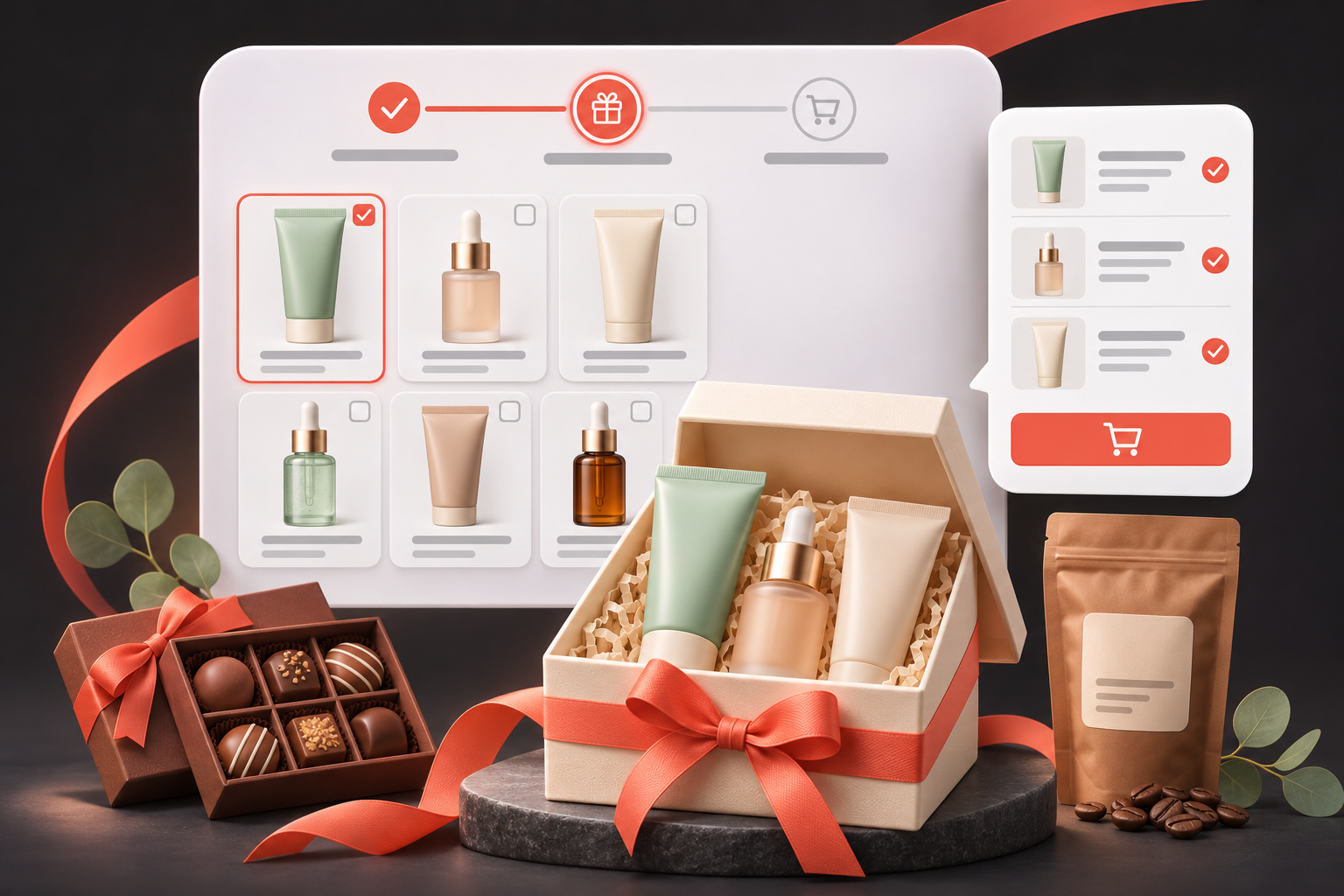
Build a purposeful selection experience around the way your customers shop.
Guide shoppers through a set of relevant choices instead of asking them to piece together a routine or gift across separate pages.
Present complementary items in the same journey. Give customers a clear way to discover the products that complete their set.
Let customers choose from your selected products while keeping the structure and required selections right for the bundle.
Use a template or create your own bundle structure. The examples below reflect the kinds of experiences shown in EZ Bundles.
Guide customers through cleanser, serum, moisturizer, and SPF choices.
Let shoppers put together a coordinated selection across makeup categories.
Offer a build-your-own assortment from the chocolates you choose to include.
Bring complementary coffee products together in a customizable set.
Manage the selection experience from one workspace, with separate areas for products, rules, pricing, design, and settings.
Organize selections into multiple steps, mark required choices, and show shoppers their progress through the bundle.
Assign products directly or connect collections to define which choices appear at each step.
Set the selection requirements for your flow. Use conditional rules, where your plan supports them, to change later steps based on earlier choices.
Review product-total pricing, step overrides, and premium upgrades in the Pricing tab. Check the final total for different combinations before launch.
Customize banners, product cards, summary placement, colors, and typography. Preview your design on desktop, tablet, and mobile.
Keep bundles in draft while preparing them. Review the setup checklist, connect a storefront page, and publish when the experience is ready.
Your bundle rules give the journey structure. Customers choose the products they want within that structure.
Show a focused range of products for the first step.
Guide shoppers through serum, moisturizer, and SPF choices.
Let customers see their selections before adding them to the cart.
Illustrative flow. Configure the products, required selections, pricing, and layout for your own store.
Save the bundle configuration in the app and the page placement in Shopify. Both matter to a successful launch.
Open EZ Bundles in Shopify admin. Choose Create Bundle or browse Templates, then set a descriptive title and a unique bundle handle.
In Products & Rules, add steps, assign products or collections, and configure required selections. Review Pricing and check how different product choices affect the total.
Customize Page Design and preview desktop, tablet, and mobile layouts. In Settings, choose the storefront page. Add the EZ Bundle Builder app block in your Shopify theme, enter the bundle handle, and save the theme.
Review the setup checklist and publish the bundle. Check the schedule if one is configured. Open the live page, complete the selections, and verify the items and totals in the cart.
Choose a layout and customize the parts shoppers see—from the opening banner to the product cards and final summary. Use the responsive preview to check how it all fits together.
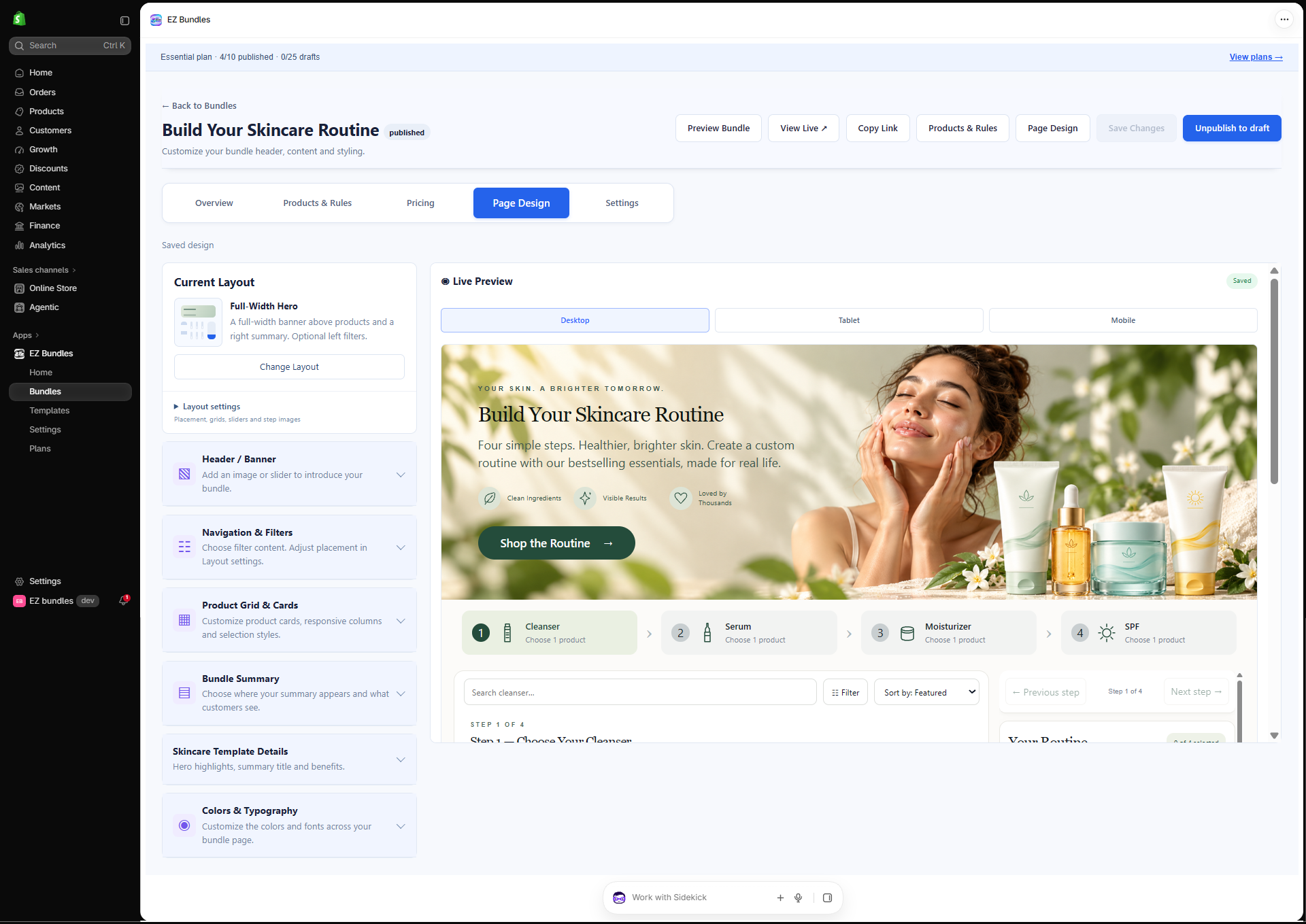
Saved settings and setup indicators are useful checks. Your live storefront is where you confirm the full experience.
Confirm products are available, required choices work, and the intended pricing is reflected across different selections. Review the page copy and product imagery.
Confirm the correct page, bundle handle, theme app block, publication status, and schedule. Test the full flow on mobile and desktop and verify the cart items and total.
Open Plans in the app for current pricing, draft and published-bundle limits, step limits, and included features. Conditional rules and other capabilities can depend on your plan.
Check the current plan details and the terms shown by Shopify before approving a subscription. This page does not quote prices or limits that may change.
Practical guidance for products, rules, pricing, design, and getting your bundle live.
Still need help?
Contact EZ Bundles support →
19 answers about setting up and managing your bundles.
You can create mix-and-match product sets, gift boxes, and guided routines. Use the available templates or define your own products, steps, selection rules, pricing, and page design.
Customers open the bundle page, choose from the products you make available, and complete the required selections. The bundle summary shows their choices and estimated total before they add the selection to the cart.
Yes. Use multiple steps to group choices, such as cleanser, serum, moisturizer, and SPF. Configure required selections and show progress to help shoppers understand what remains.
Yes. Products & Rules supports direct product assignments and assigned collections. Review the available products in each enabled step and test the choices returned on the storefront.
Configure the selection requirements for each step so customers know what they need to choose. Test the minimum and maximum rules you set, including what happens when the bundle is incomplete.
Conditional rules can change later steps based on earlier choices. Availability depends on your plan. Review the available rule controls in the app and test the real storefront flow before launch.
The Pricing area shows the configured pricing method and supports controls such as step overrides and premium upgrades. The final amount depends on your configuration and the shopper’s selections. Test representative combinations and check the cart total.
The app includes pricing controls, but a bundle can also be useful as a guided way to select complementary products. Review the available pricing settings in your app rather than assuming a discount is automatically applied.
Yes. Page Design includes header and banner controls, product cards, summary settings, colors, and typography. Choose an available layout and review desktop, tablet, and mobile previews.
Choose the storefront page in the bundle’s Settings. In Shopify’s theme editor, add the EZ Bundle Builder app block, enter the correct bundle handle, and save. Opening the editor alone does not install or save the block.
The handle identifies the bundle in the page and app-block setup. Use lowercase letters, numbers, and hyphens as directed in the app. The handle entered in the theme block must match the intended bundle.
Confirm that the bundle is published and within its schedule, the correct storefront page is selected, and the EZ Bundle Builder app block is saved in the relevant theme with the right handle. Reload the live page after making changes.
Check that every required selection is complete and the configured selection rules are satisfied. Confirm the selected products are available. If the issue remains, send support the page URL and the exact selection that triggers it.
Use the Products & Availability check in the bundle overview and review the products returned by your enabled steps. Stock is checked again when shoppers add a bundle, so availability can change after an earlier check.
Some details are locked while the bundle is published. Use Unpublish to draft before editing locked settings, save your changes, review the setup, and publish again when ready. Consider the effect on your live page while the bundle is unpublished.
No. The checklist reflects saved bundle configuration. It does not fully verify theme placement or cart behavior. Test selections and inspect the items and totals in the live storefront cart before launch.
Check the opening banner, step navigation, product cards, selection controls, summary, and Add to Cart flow on a narrow screen. Use the responsive preview while designing, then test the actual storefront on a phone.
Open Plans in EZ Bundles for the current published-bundle, draft, step, and feature allowances. The usage summary in the app can help you see your current usage. Review the plan details before changing your subscription.
Use the Contact page or email support@zdzine.com. Include your Shopify store domain, bundle handle, live page URL, and the steps that reproduce the problem. Add a screenshot if useful, without passwords or access tokens.
No matching answers. Try another word or contact our team.
Need help with products, page placement, selection rules, or a cart issue? Tell us what you are building.